Getting Started With Git and TortoiseGit on Windows
**Still relevant since 2010:** I'm glad you're one of the thousands who find this post helpful. If you enjoy this article, I'd love for you to stick...
Still relevant since 2010: I’m glad you’re one of the thousands who find this post helpful. If you enjoy this article, I’d love for you to stick around and check out some of my more recent writing on technology, leadership, strategy, and AI. Explore recent posts →
Version control is essential to the success of any software project. It provides the ability for multiple developers to work on the same codebase simultaneously and allows projects to be versioned for release. However, a great deal of programmers fail to leverage the great benefits of version control for their personal projects.
Luckily, Git and TortoiseGit are extremely easy to install and configure on Windows. Now, there's no excuse not to version control your code!
Here are the topics we will cover today:
- Install Git
- Install Tortoise Git
- Create a new Git repository
- Add an initial codebase to the Git repository
- Change a file and commit
- Clone the repository
Install Git
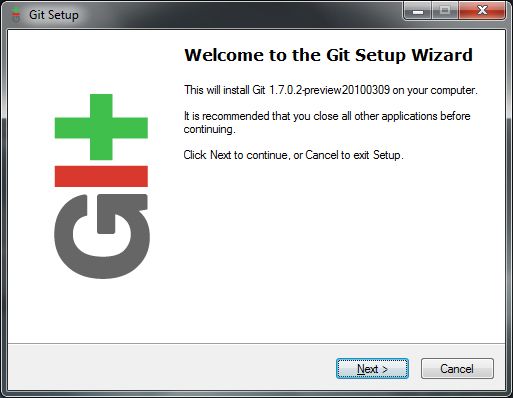
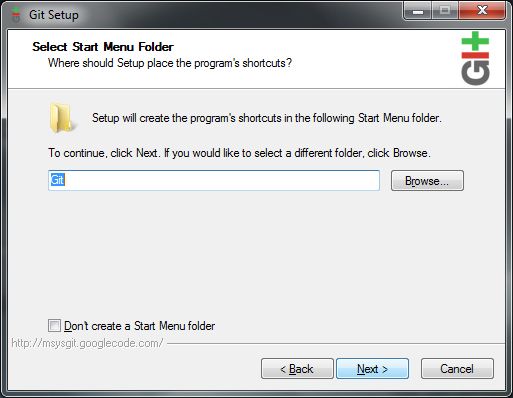
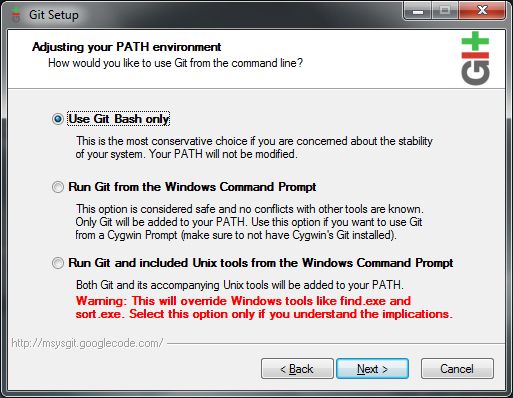
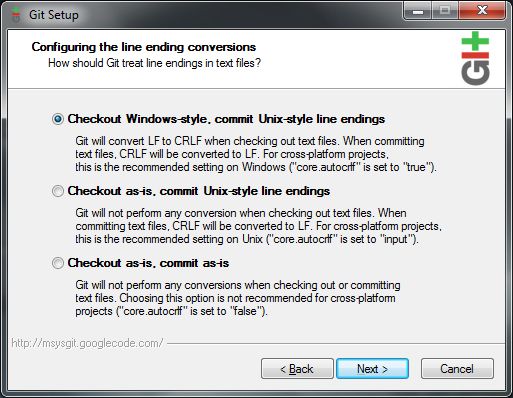
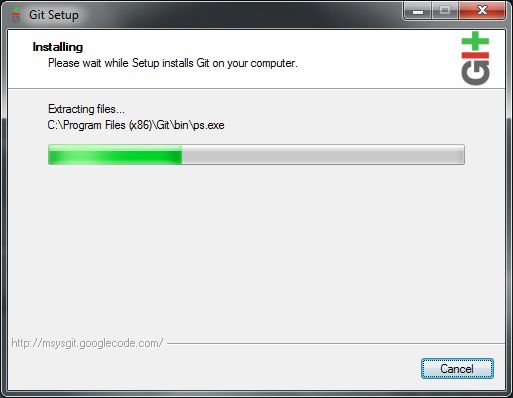
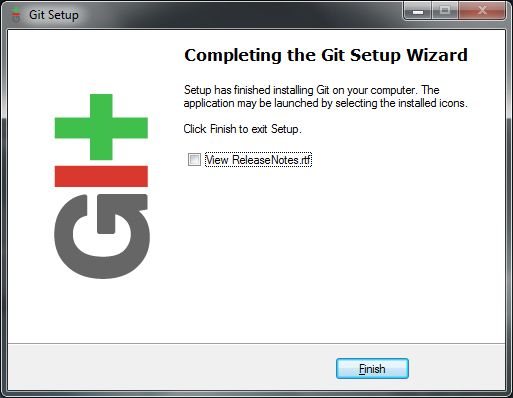
These are the installation options I used to install Git-1.7.0.2-preview20100309.exe on Windows
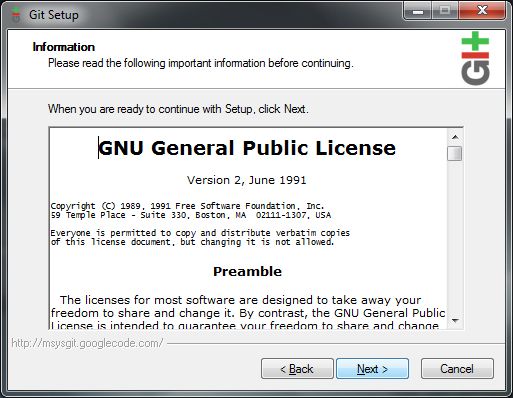
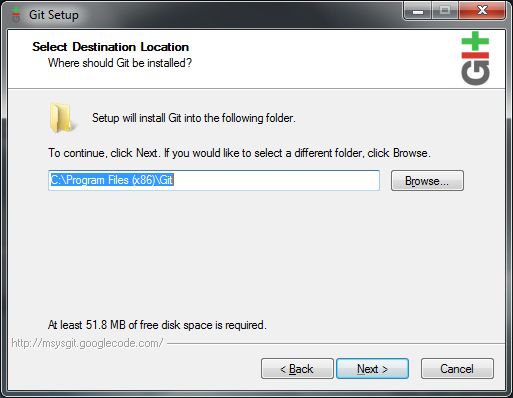
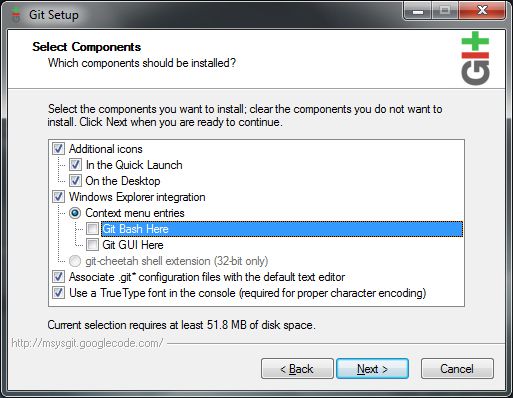
Note: You can enable the options to show a Git GUI or Bash shell if you want that option to be available every time you right-click on something in Windows Explorer. I just didn't want that much space taken up on my right-click men
Lastly, be sure you point your system path to wherever the Git installation resides on your machine.
Install Tortoise Git
Download, Install, and restart your machine.
Create a new Git repository
- Create a folder -- I'm using D:\repo -- to be used for your Git repository.
- Right-click the folder and select Git Create Repository Here
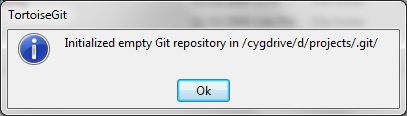
You should now be greeted with the following message
Add an initial codebase to the Git repository
- Copy your source files to the git folder.
- Right click on the folder and select Git Commit
- In this case, I added two files. I'm going to check both of them
- click OK.
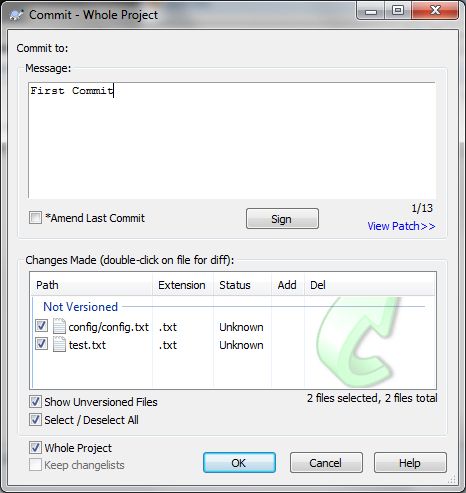
Now we have a legitimate repository with actual files in it.
Change a file and commit
Now you can change, add, or delete files within the repository. Once you are ready to commit back to the repository, right click and select Git Commit just like above.
Clone the repository
Cloning is one of the great features of Git, and while it isn't necessarily important for solo projects, it is important enough to mention here.
- Tortoise allows you to clone projects by right clicking on the desired clone folder and selecting Clone
- In the dialog, select the parent repository.
- Click OK
- Now, the cloned repository will be synced up with the main repository. This is useful for multi-person teams.
Conclusion
Git and TortoiseGit make it extremely easy to get personal version control up and running on your machine. Now you can develop your projects with the piece of mind that version control provides with little hassle and setup.
If you found this helpful…
I’ve spent the last decade moving from hands-on engineering to executive leadership, and I write about that journey.
If development workflow, team collaboration, and engineering practices interest you, you might enjoy my writing on:
- Move Fast and Don’t Break Things - Modern engineering practices
- The Five Year Cliff - Growing from engineer to leader
- Effective Leadership Through Effective Relationships - Building collaborative teams
Want insights on technology strategy and engineering leadership? Subscribe for updates →
How did you like this article?
Enjoyed this article? Subscribe to get weekly insights on AI, technology strategy, and leadership. Completely free.
Subscribe for Free